![GoTab Logo - White.png]](https://success.gotab.io/hs-fs/hubfs/GoTab%20Logo%20-%20White.png?height=40&name=GoTab%20Logo%20-%20White.png)
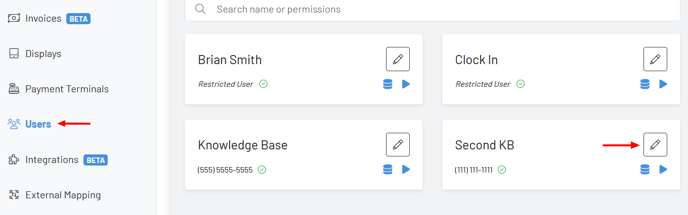
Step 1:Navigate to the Users Page and select the pencil icon on the user.
Step 2: Click the Additional Information Dropdown and Assign New PIN
.png?width=688&height=587&name=Screenshot%202024-08-12%20131703%20(1).png)
Notes:
-Assigned PINs are one-way encrypted. GoTab does not have access to the PIN once it has been assigned. If unsure of PIN, simply type the PIN in again and assign new PIN.
-Phone verified managerial users will received a text notification when their PIN has been assigned and/or reassigned.